Updating CORTEX GSM transmitter firmware: via USB, by command and automatically
How to update CORTEX transmitter firmware: the RT4-5GP/4 via USB, automatically or by command, and modules with versions 32xx and 34xx on many sites at once through TLF_Serv. Plus the main rule: never cut the power while an update is running.
Update methods
| Method | How it starts | Duration |
|---|---|---|
| Via USB | Update button in USB_Reader, choose the *.hex firmware file | 3–4 minutes |
| Automatic | Auto upgrade enable option (General Settings tab). First check 12 hours after power-on, then once a month | 5–6 minutes |
| By command | Command xxxx:update (xxxx is the security code) from WinSC, TLF_Serv or a registered phone | 5–6 minutes |
| Forced | Started by the manufacturer for critical changes | — |
- Updates over the network need no firmware file: the transmitter downloads it from the manufacturer’s server and sends a “ready” message when finished.
- Automatic and forced updates work only in OnLine mode. An update by command works in both OnLine and OffLine mode, whether or not auto upgrade is enabled.
The main rule: keep the power on
During an update the LTE LED flashes blue rapidly (downloading), then the GSM LED flashes red rapidly together with it (writing the new version).
⚠ Never disconnect the transmitter’s power at this time. If power is lost, the transmitter may stop working and can then only be restored at the factory. Before updating, make sure the site has a charged backup battery.
Bulk update with TLF_Serv
At the monitoring centre, firmware can be updated on all transmitters of one version at once. The function is available in TLF_Serv 2.0.6.17 and later and works for modules with versions 32xx (RT4-5gc v3) and 34xx (RT4-5GL). Modules 341x can be updated up to version 3413, modules 342x up to the latest published version.
- Download the firmware file (*.hex) from the installer portal ff.cortex.lv: File / General / Download / Utilities / FirmWare.
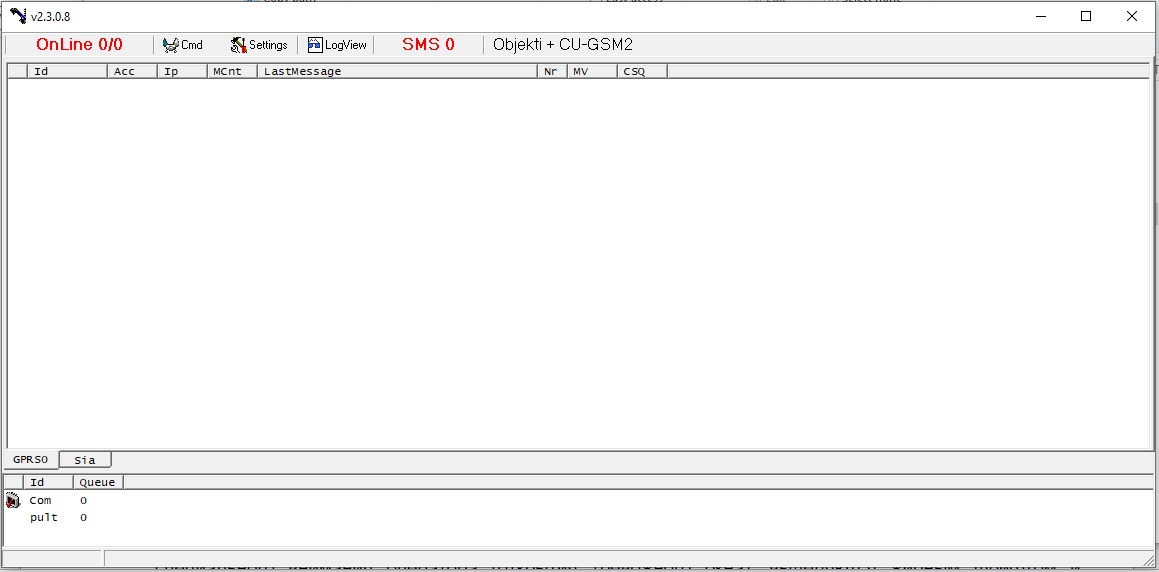
- In TLF_Serv sort the connections in the GPRS tabs by Id and make sure Broadcast mode is off.
- Press Cmd on the server panel, then AUpdate.
- Enter the module version to update — in full or its first digits: 3421 — only that version, 342 — all 342x, 34 — all 34xx.
- Choose the firmware file. The server builds the list of matching modules and starts loading — 5–6 modules at a time; modules being loaded show Wait for hex! in the list.
- If modules have a Security Code enabled, the server asks for it — for one module or for all at once.
- When finished, the AUpdate button returns to its normal state. Sort the connections by the MV column, check the versions and repeat if needed.
- Modules that are OffLine when the list is built or during loading are not updated.
- Compatibility with new firmware is usually kept within the last digit of the version. The module rejects unsuitable firmware and stays on its current version.
- Do not use Module Config, Edit, GetLog or LoadCodes during the update. To stop the update, press AUpdate again and keep the Cmd window open for about 5 minutes.
Documentation
- 📄 RT4-5GP/4 V51.xx installation manual (Russian)
- 📄 RT4-5GP/4 V51.xx installation manual (Latvian)
- 📄 Automatic update in TLF_Serv (Russian)
This guide is based on the CORTEX manual. If you have questions, call technical support: +371 26485444 (24/7).